robots.txt for AI: Stop Accidentally Blocking ChatGPT
Your robots.txt file might be making your website invisible to AI. Learn how to configure it properly to allow ChatGPT, Claude, Perplexity, and other AI systems to see your content.

Key Takeaways
- robots.txt is the #1 reason websites are invisible to AI, check yours immediately
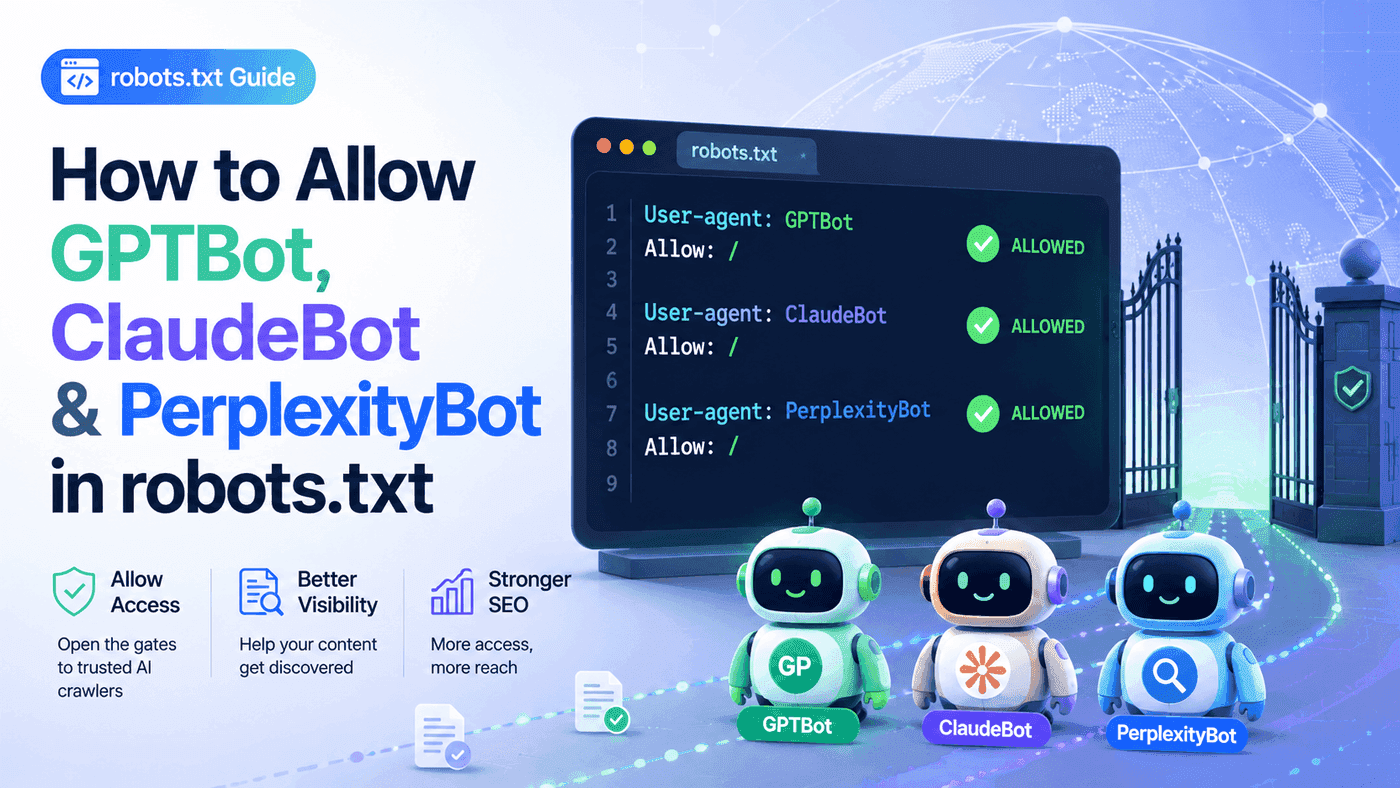
- AI crawlers include GPTBot (ChatGPT), Claude-Web, PerplexityBot, and Google-Extended
- Add explicit 'Allow: /' rules for each AI crawler you want to permit
- Fixing robots.txt takes 5 minutes and can restore AI visibility within 1-2 weeks
- You can selectively allow AI on some content while blocking sensitive areas
The Hidden Reason AI Can't Find Your Website
There's a file on your website that might be making you completely invisible to AI search engines. It's called robots.txt, and if it's configured wrong, ChatGPT, Claude, and Perplexity literally cannot see your content.
This is the #1 technical issue blocking AI visibility, and it takes less than 5 minutes to fix.What is robots.txt?
robots.txt is a text file that tells web crawlers which parts of your website they can and cannot access. It lives at yourwebsite.com/robots.txt.
When any bot, Google, ChatGPT, Perplexity, visits your site, the first thing it checks is robots.txt. If robots.txt says "don't crawl," the bot obeys.
The AI Crawler Problem
Many websites have robots.txt rules that accidentally block AI crawlers. This happens because:
- Default settings: Some platforms block bots by default
- Old configurations: Rules set before AI search existed
- Security concerns: Overly aggressive bot blocking
- Copy-paste mistakes: Incorrectly configured rules
How to Check Your robots.txt
Step 1: Find Your File
Go to: yourwebsite.com/robots.txt
You'll see something like:
User-agent:
Allow: /

Sitemap: https://yourwebsite.com/sitemap.xml
Step 2: Look for AI Crawler Rules
Search for these user agents:
- GPTBot (ChatGPT/OpenAI)
- Claude-Web (Anthropic's Claude)
- PerplexityBot (Perplexity AI)
- Google-Extended (Google AI features)
- CCBot (Common Crawl, used by many AI systems)
- Amazonbot (Amazon/Alexa AI)
Step 3: Identify Problems
Problem: Explicit blocksUser-agent: GPTBot
Disallow: /
User-agent:
Disallow: /
The Correct Configuration
Here's a robots.txt that allows AI crawlers while maintaining reasonable controls:
# Allow all crawlers by default
User-agent:
Allow: /
# Explicitly allow AI crawlers
User-agent: GPTBot
Allow: /
User-agent: Claude-Web
Allow: /
User-agent: PerplexityBot
Allow: /
User-agent: Google-Extended
Allow: /
User-agent: Amazonbot
Allow: /
# Block sensitive directories (adjust for your site)
User-agent:
Disallow: /admin/
Disallow: /private/
Disallow: /api/
# Sitemap location
Sitemap: https://yourwebsite.com/sitemap.xml
Platform-Specific Instructions
WordPress
- Install Yoast SEO or Rank Math plugin
- Go to SEO → Tools → File Editor
- Edit robots.txt
- Add AI crawler permissions
- Save changes
Shopify
- Go to Online Store → Preferences
- Scroll to robots.txt.liquid
- Click "Edit"
- Add AI crawler rules
- Save
Squarespace
- Go to Settings → Advanced → Code Injection
- Squarespace manages robots.txt automatically
- Contact support for custom rules
Next.js / Custom Sites
- Create or edit
public/robots.txt - Add AI crawler permissions
- Deploy changes
What If You Want to Block AI?
Some businesses have legitimate reasons to block AI crawlers:
- Protecting proprietary content
- Copyright concerns
- Competitive intelligence worries
User-agent: GPTBot
Disallow: /
User-agent: Claude-Web
Disallow: /
Selective Permissions
You can allow AI crawlers on some content while blocking others:
# Allow AI on blog content
User-agent: GPTBot
Allow: /blog/
Disallow: /

# Block AI from product pages but allow blog
User-agent: GPTBot
Allow: /blog/
Allow: /about/
Disallow: /products/
Testing Your Changes
After updating robots.txt:
1. Verify the file is live
Visityourwebsite.com/robots.txt and confirm your changes appear.
2. Use Google's Testing Tool
Go to Google Search Console → robots.txt Tester Enter different URLs to test access.3. Wait and Re-Test AI Visibility
AI systems will re-crawl your site within days to weeks. After 1-2 weeks, test by asking ChatGPT about your content.Common Mistakes to Avoid
Mistake 1: Forgetting the trailing slash
# Wrong
Disallow: /admin

# Correct
Disallow: /admin/
Mistake 2: Case sensitivity
User-agent names are case-sensitive. Use exact capitalization:- GPTBot (not gptbot)
- Claude-Web (not claude-web)
Mistake 3: Conflicting rules
If you have multiple rules for the same bot, the most specific one applies. Be intentional about order.Mistake 4: Not having a sitemap
Always include your sitemap URL, it helps all crawlers find your content:Sitemap: https://yourwebsite.com/sitemap.xml
Immediate Action
- Check your robots.txt now:
yourwebsite.com/robots.txt - Look for AI bot blocks: Search for GPTBot, Claude-Web, PerplexityBot
- Fix any issues: Add explicit Allow rules
- Verify changes are live: Refresh and confirm
This single fix can take your AI visibility from zero to accessible in under 5 minutes.
→ Check Your Complete AI Visibility ScoreAfter fixing robots.txt, run a GEO audit to see what other optimizations will improve your AI search presence.
Want to see your AI visibility score?
Get a free GEO audit and discover exactly what's holding your site back in AI search, in 90 seconds.
Start Free AuditFrequently Asked Questions
How long after fixing robots.txt will AI see my content?
AI systems typically re-crawl websites within days to a few weeks. ChatGPT and Perplexity may find your content within 1-2 weeks after robots.txt changes. To speed things up, ensure your sitemap is submitted and your content is being actively updated.
Will allowing AI crawlers hurt my SEO?
No, allowing AI crawlers has no negative impact on Google rankings. AI bots and Google's main crawler (Googlebot) are separate. You can allow AI crawlers while maintaining the same Google SEO. In fact, Google-Extended specifically controls AI features, not search rankings.
Can I allow AI crawlers but protect certain content?
Yes, use selective rules in robots.txt. Allow AI on your blog and public pages while blocking sensitive directories. Example: 'Allow: /blog/' and 'Disallow: /members-only/'. This gives you visibility for public content while protecting private areas.
What's the difference between GPTBot and Google-Extended?
GPTBot is OpenAI's crawler for ChatGPT. Google-Extended is Google's crawler specifically for AI features (like AI Overviews and Bard/Gemini). Blocking Google-Extended doesn't affect regular Google Search rankings, it only affects Google's AI features.
Cited Team
AI Search Optimization Experts
The Cited team builds and runs a 120+ factor audit engine for AI search visibility. Our experts combine deep technical knowledge with practical experience helping businesses get found by ChatGPT, Claude, Perplexity, and other AI assistants.
Topics
Ready to Optimize Your Site for AI Search?
Get a free GEO audit and see your optimization score in 90 seconds.
Start Free Audit